Your notes are the beginning.

Start with a note.
Connect the rest.

A rich Markdown editor for your real files. Add structure, useful views and AI as your notes grow into a personal knowledge base.

Try this at home:
npx braian

Node.js 22.16+ · Early software, ready to try

Try in Codespaces ↗
See more options
BrAIan / files and Markdown notes
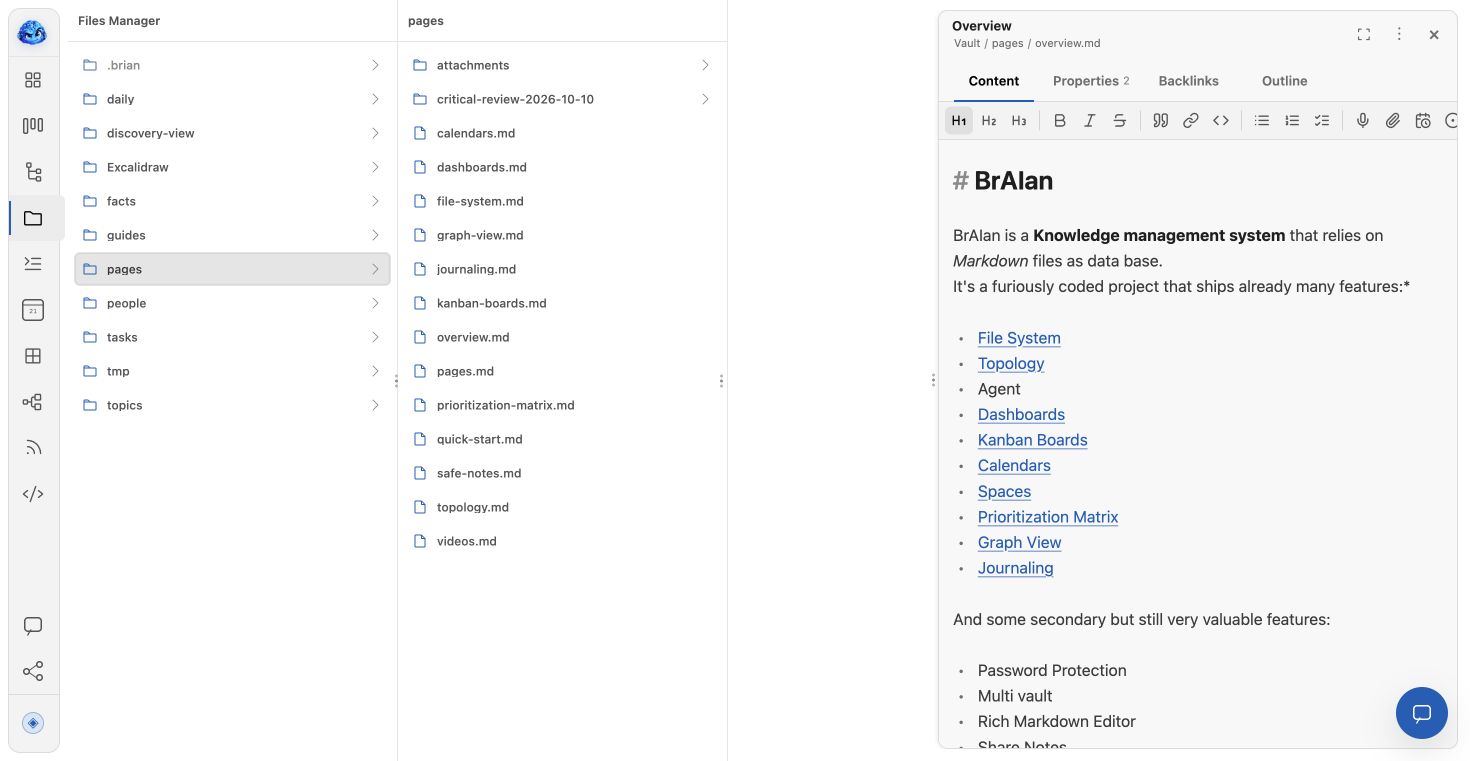
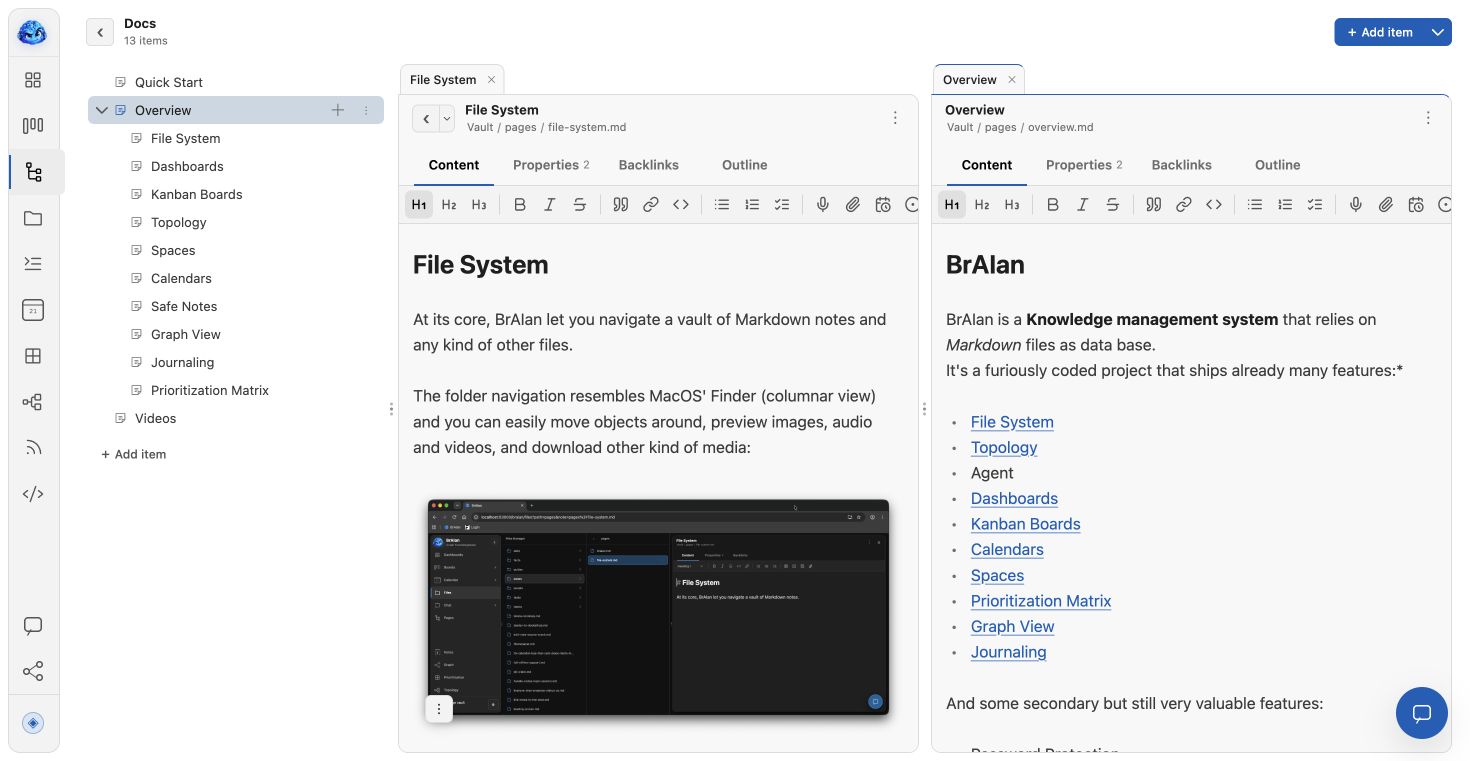
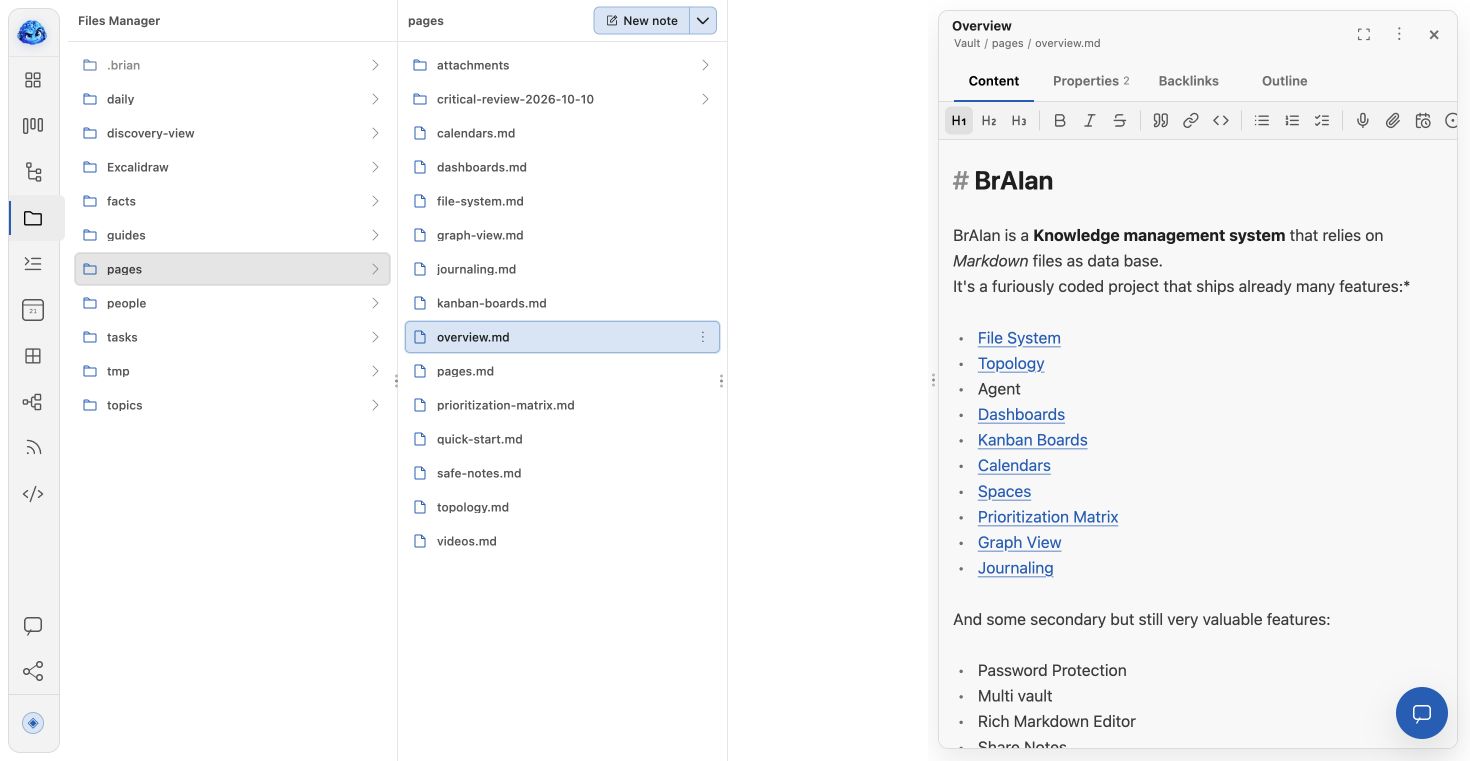
BrAIan starts with a folder tree and a Markdown note open in its editor
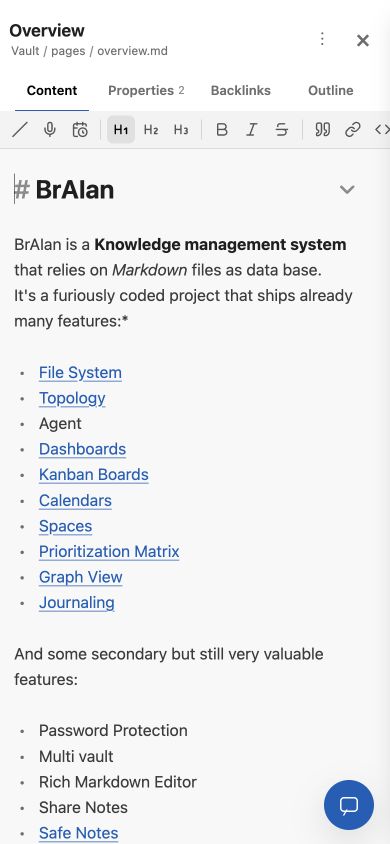
The same Markdown note in BrAIan’s phone reader

Open a vault. Write a note. That’s enough to begin.

01 / A good place to begin

Make room
for the next thought.

Start with Files. Browse a folder, open a Markdown note and write. A new vault begins here, with the rest of the workspace ready when you need it.

An editor worth staying in.

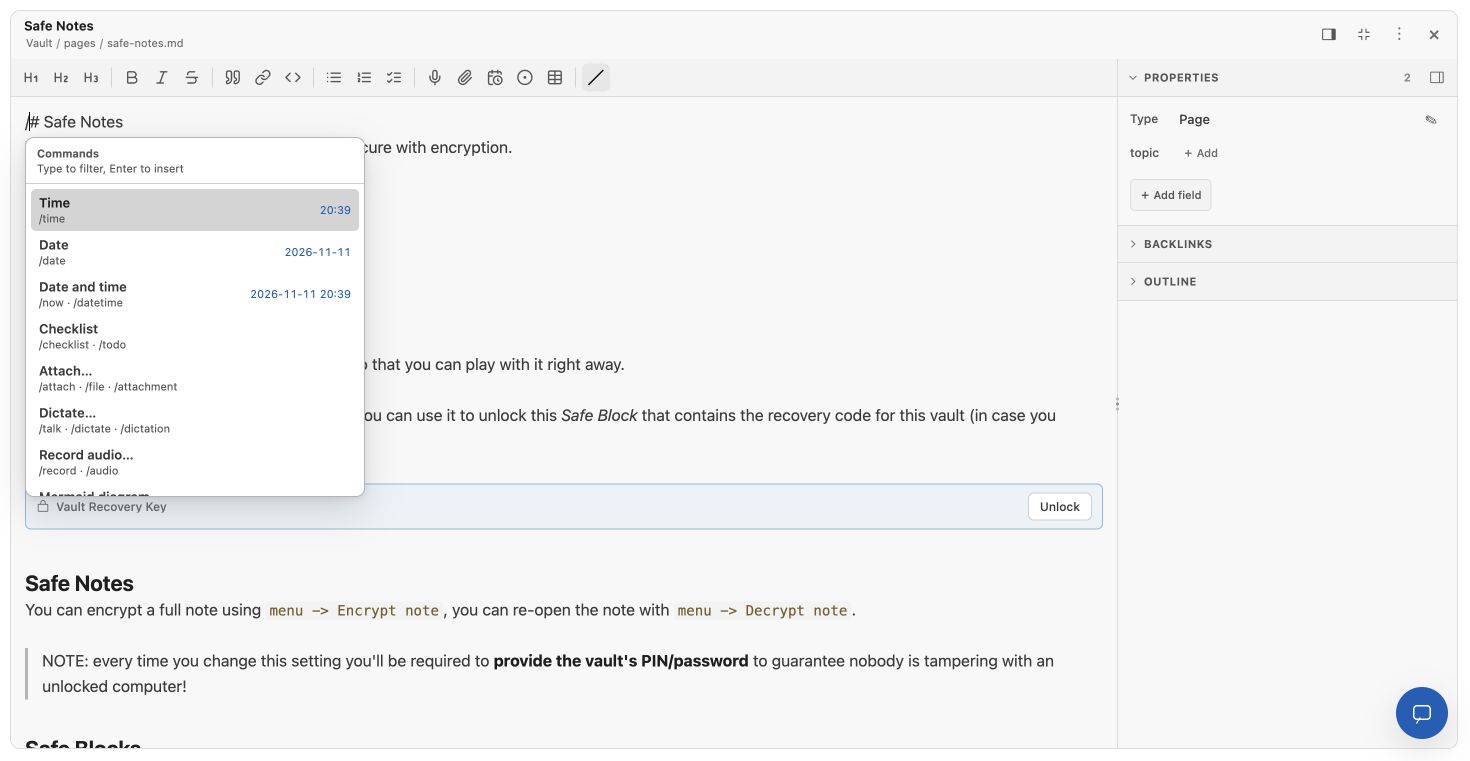
Write in live Markdown with checklists, tables, links and folding. A slash opens the next block: a diagram, attachment, recording or private safe block. Switch to source when you want the text underneath.

Your notes stay ordinary Markdown files. You can read them, back them up and use them in other tools.

Markdown editor with its slash-command picker open
Write, insert a block, keep your train of thought.

The folder can hold more

Your code.
Your files.
Your working preview.

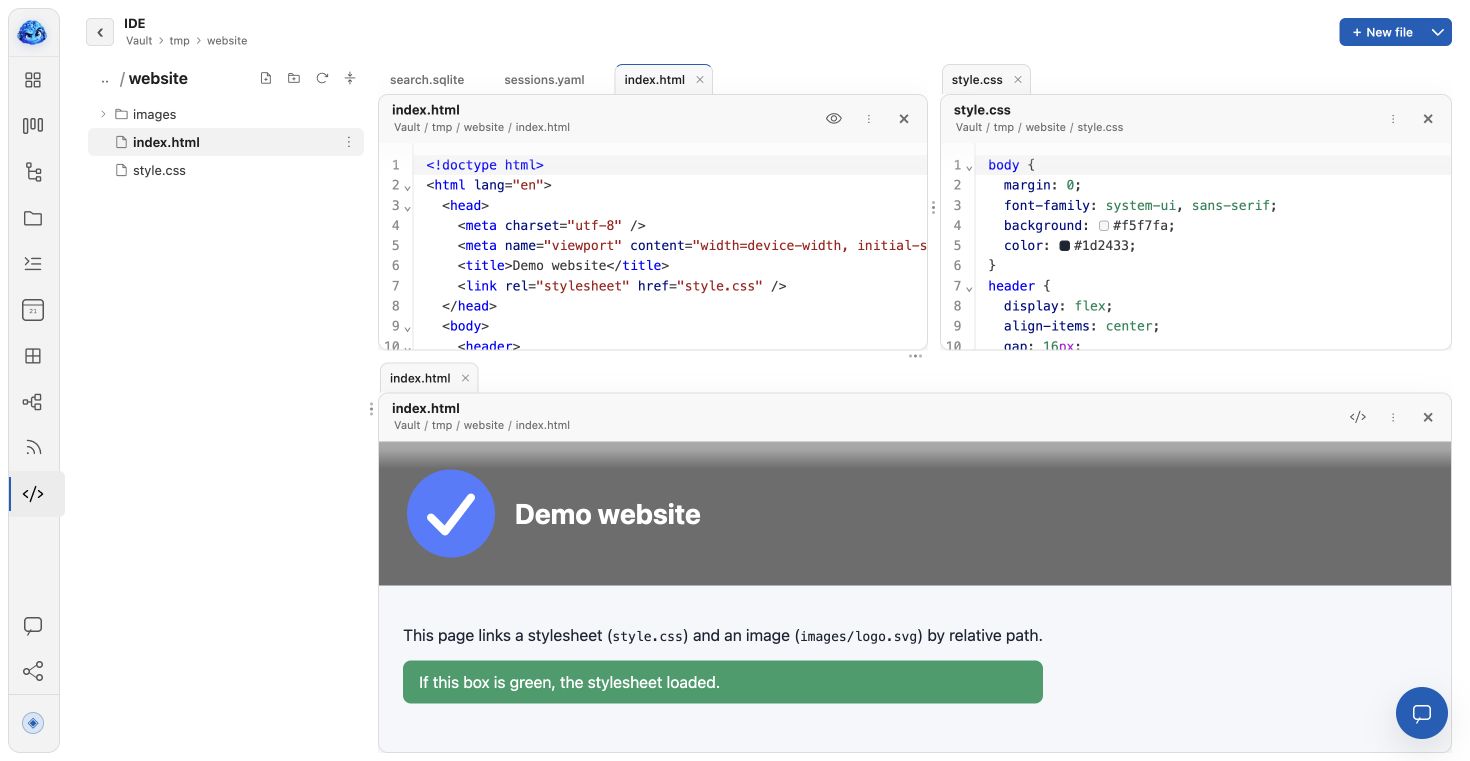
Open text and source files beside your notes. In the IDE, put HTML and CSS side by side and the rendered page underneath. Relative images and styles stay part of the same folder.

Named sessions remember your working layout. Keep documents, media and code close to the ideas behind them.

BrAIan IDE with HTML and CSS above the rendered HTML page
Real HTML and CSS from the project’s own vault, with a working preview.

02 / Keep the context in reach

More open.
Less lost.

A growing vault should be easier to use. Gather related material into a Space, keep its tree in view, and work across notes side by side.

A Space tree beside two open Markdown notes
A Space gathers references to notes, files and views. The original files stay where they are.

One shortcut.
Your next move.

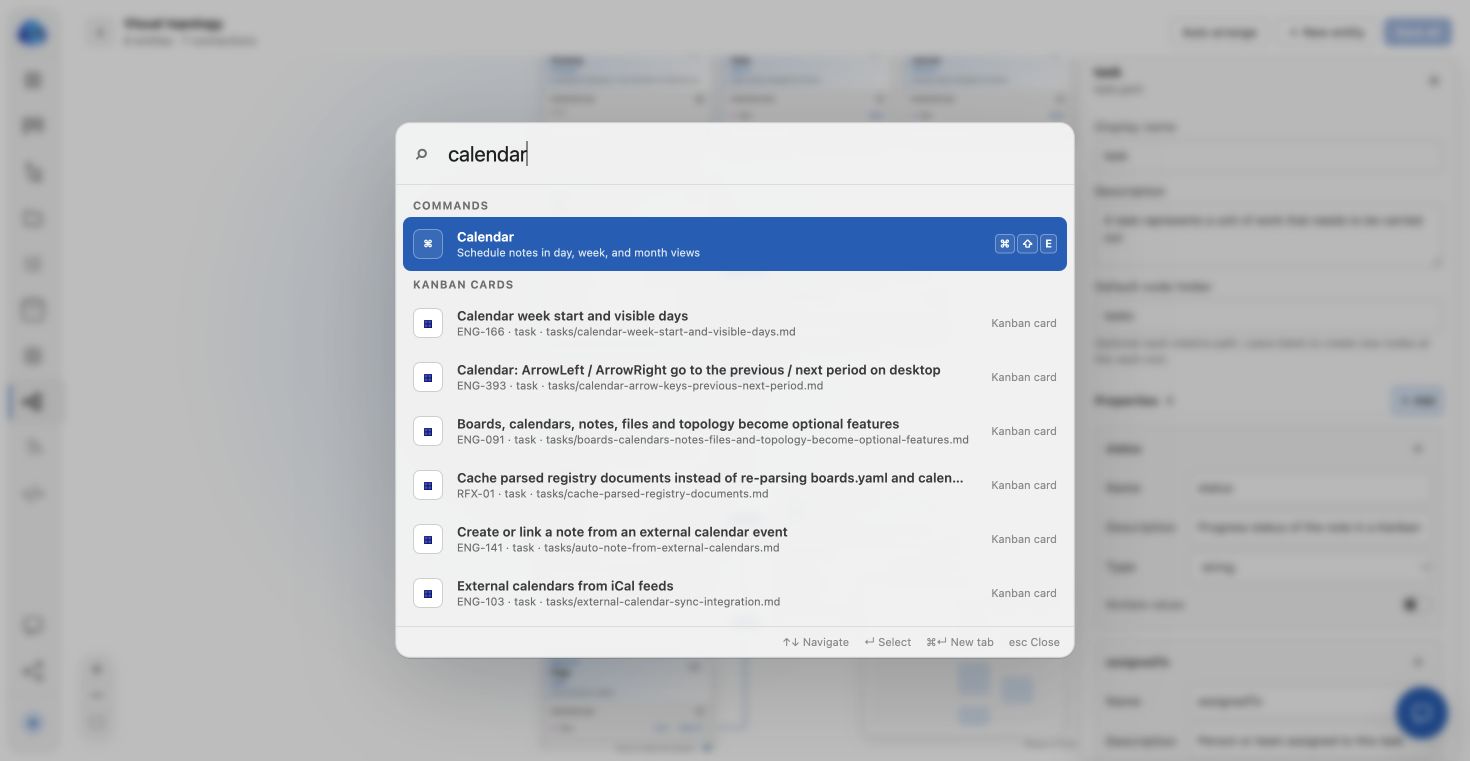
Open Spotlight to jump to a note, command, view, board card or session. Search by name and content, then go straight to the useful thing.

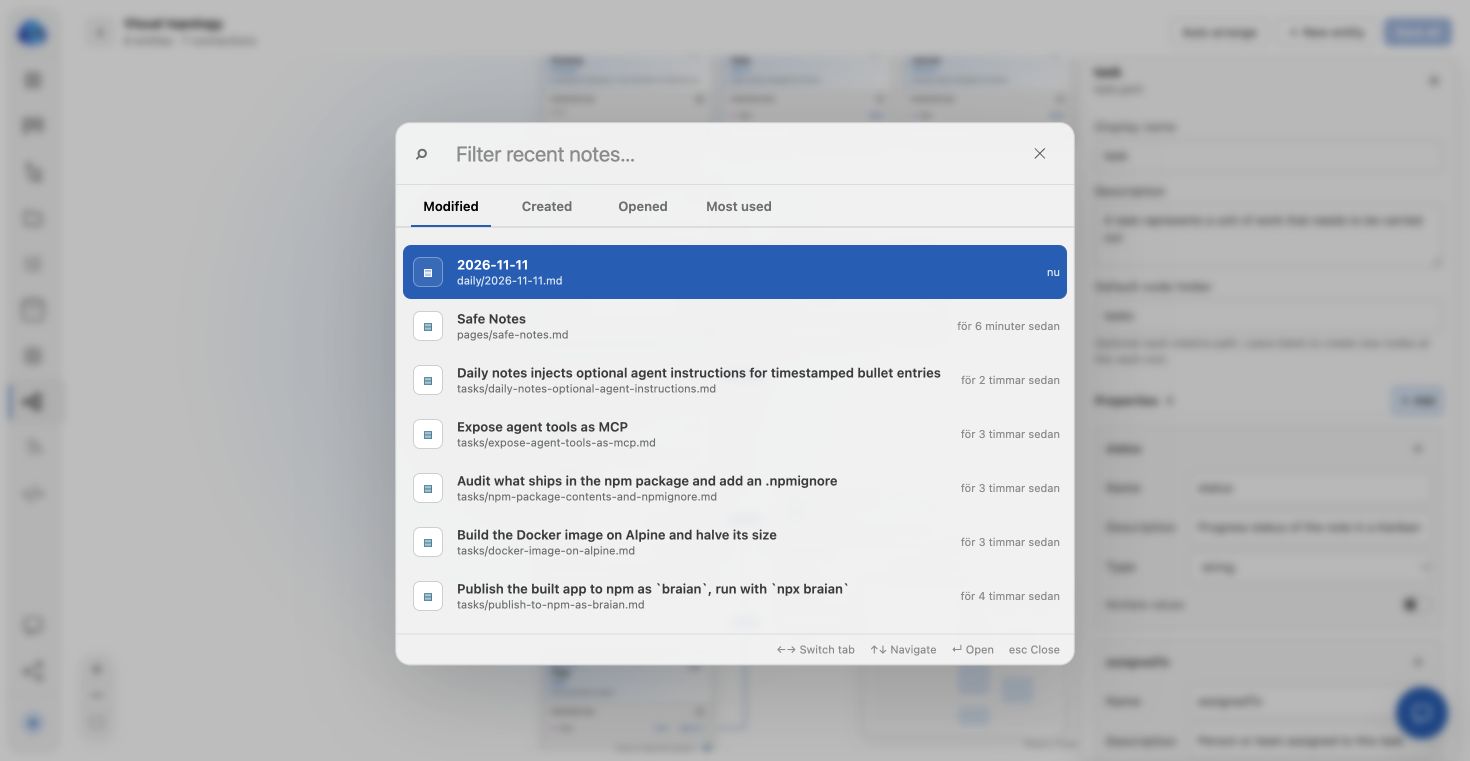
Return through Recent: recently opened, created or edited notes, plus the ones you use most. The keyboard keeps a large vault close at hand.

⌘K / Ctrl+K
Spotlight showing calendar commands, views and matching notes
Search brings commands, views and notes together.
See the Recent notes view
Recent notes with tabs for activity and frequent use
A fast way back to the notes you were working on.

03 / Give the connections meaning

A person. A project.
A reason they belong together.

When a folder needs more structure, define what its notes represent. Give a task a status and an assignee. Connect a page to a topic. Keep the meaning in the vault.

Design your own knowledge base.

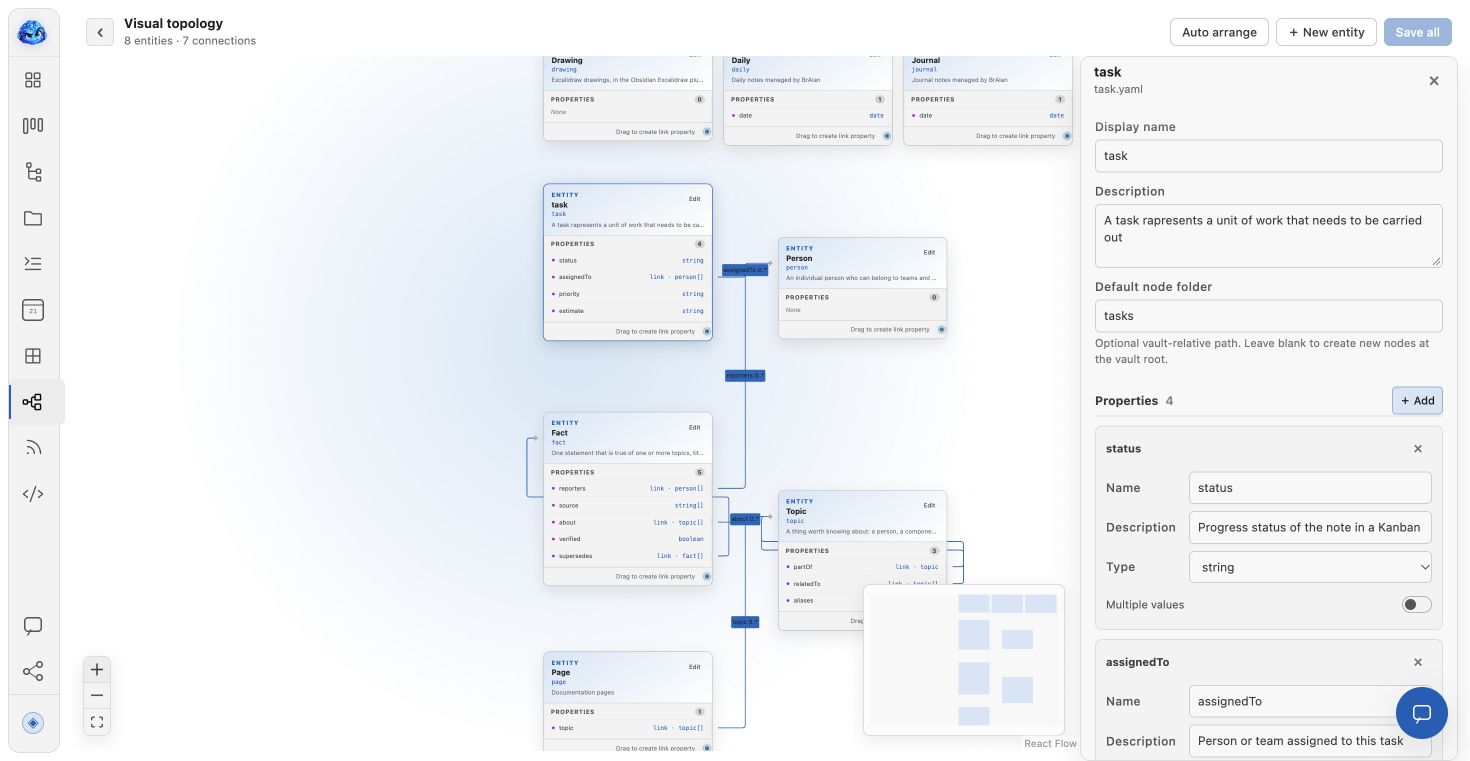
The visual topology editor defines note types, properties and relationships. Choose link targets, templates, views and related-note panels to shape how the vault works.

The schema is readable YAML. The records remain Markdown notes with properties—so the structure grows around your files.

Note typesPropertiesRelationshipsRelated panels
Visual topology with connected note types and the task properties inspector
The project’s actual topology: types, link properties and a selected schema.

04 / The same notes, more possibilities

See the work.
See the connections.

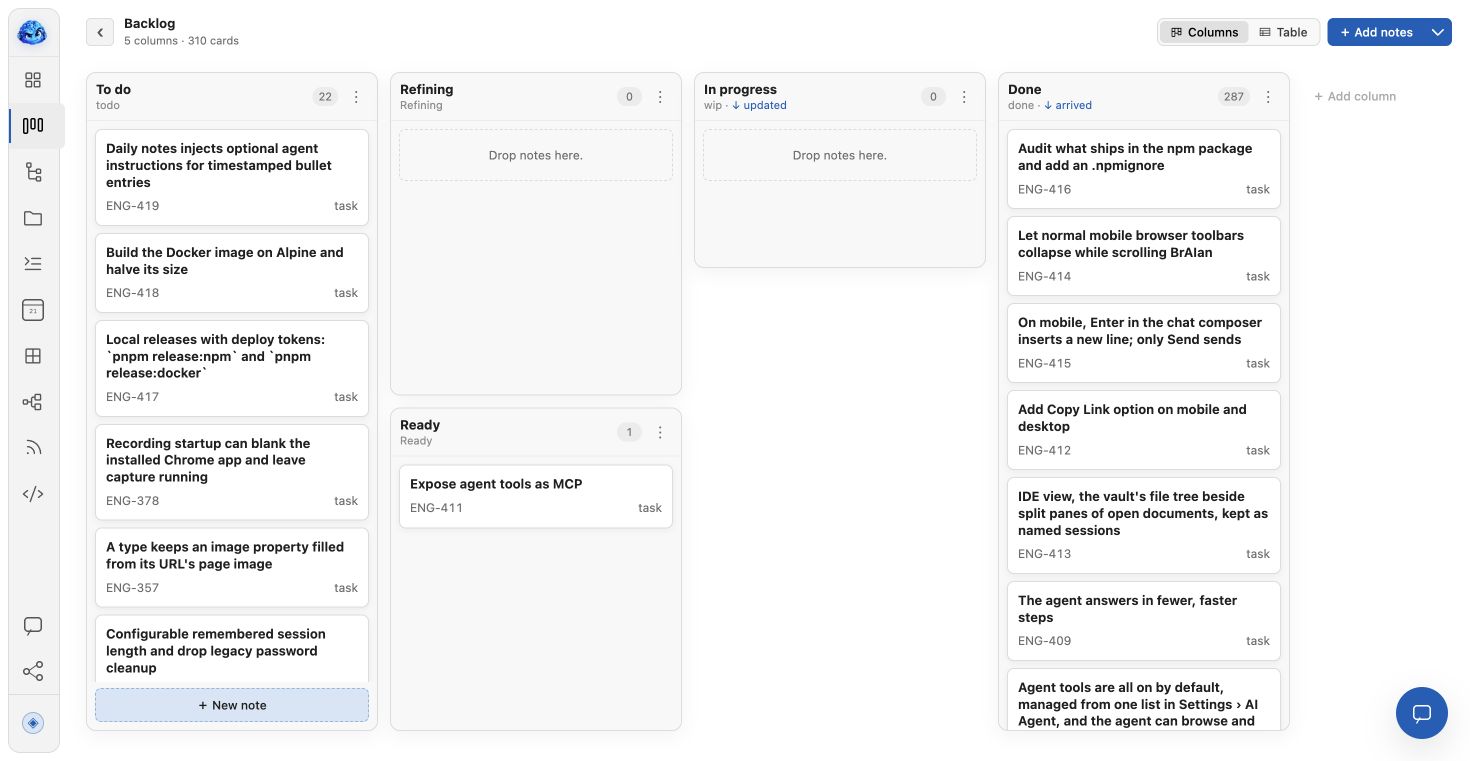
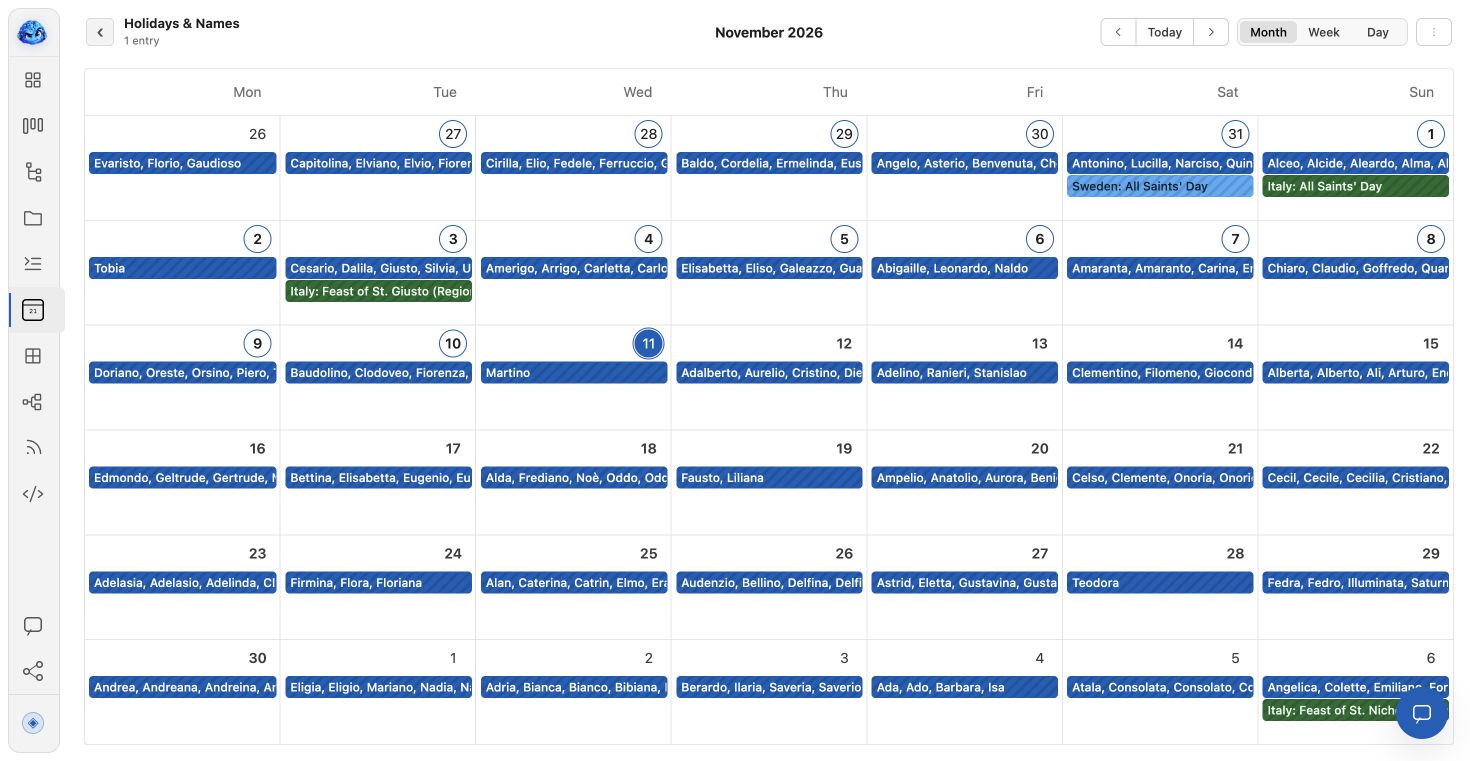
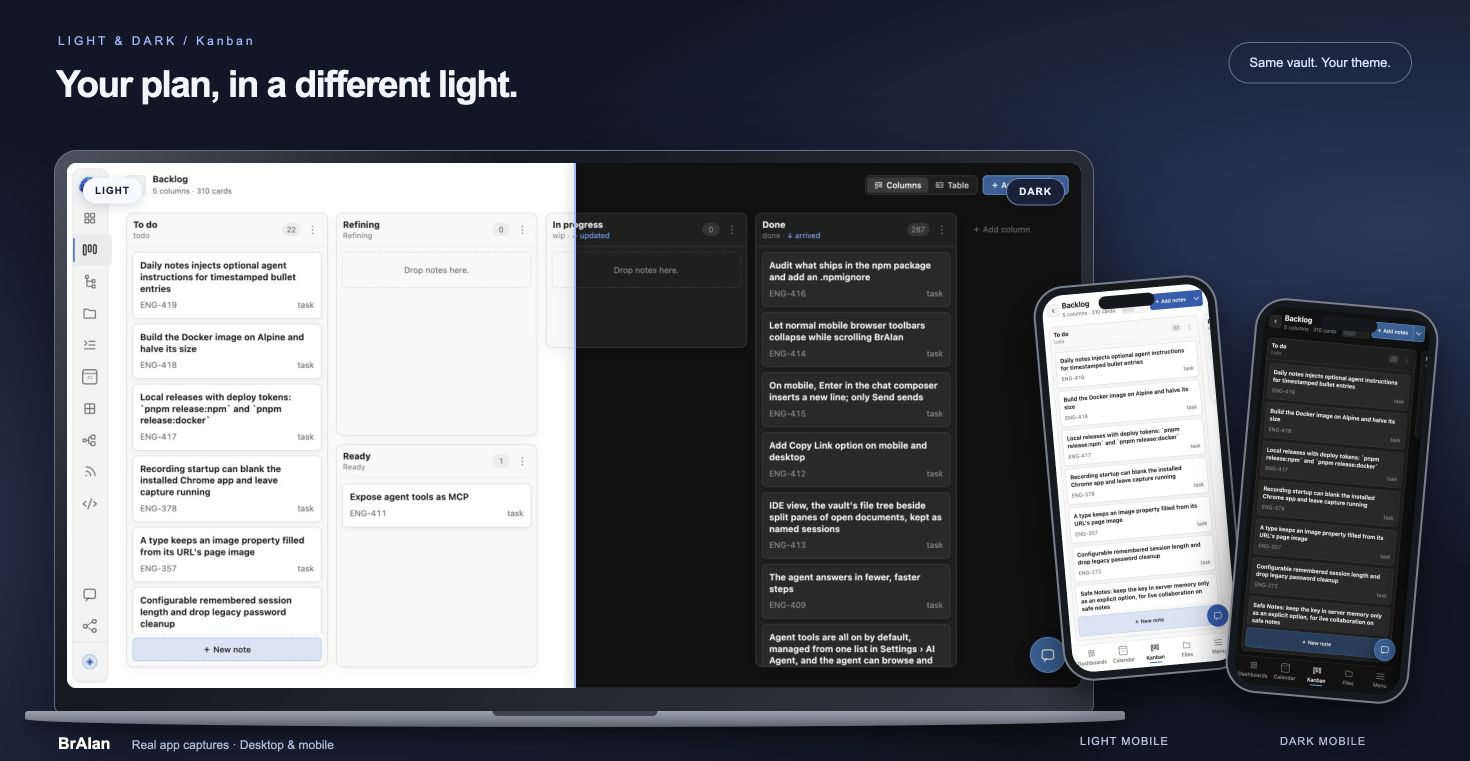
A task can be a note, a board card and a point on your calendar. A project can be a tree, a table or part of a graph. Each view brings another part of the same knowledge into focus.

Plan with context.

Use Kanban for progress, a calendar for time, or a matrix for priorities. Subscribe to external calendars through iCal links. Connect notes, URLs and supported vault views to external events; keep file links and attachments inside the event’s linked note.

Read, reflect, discover.

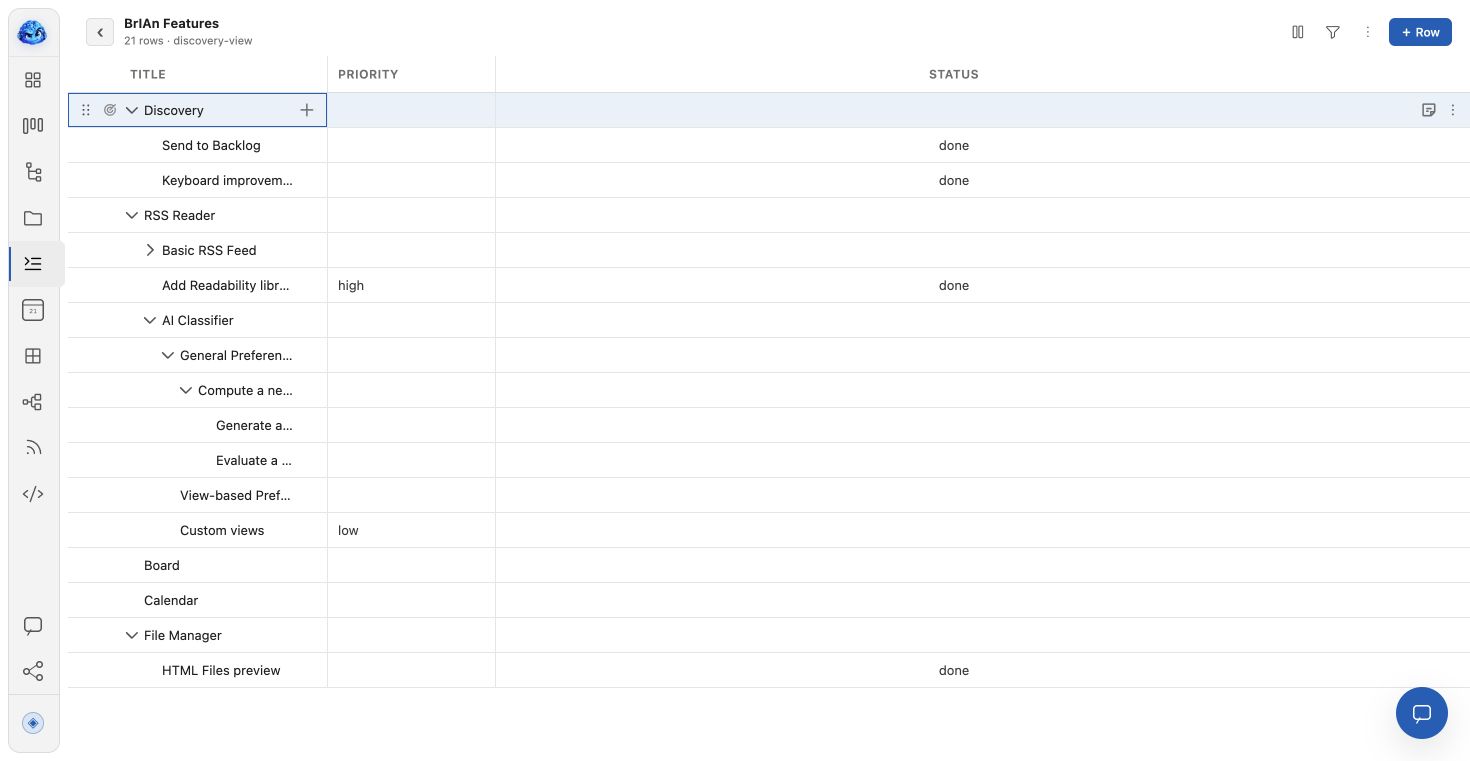
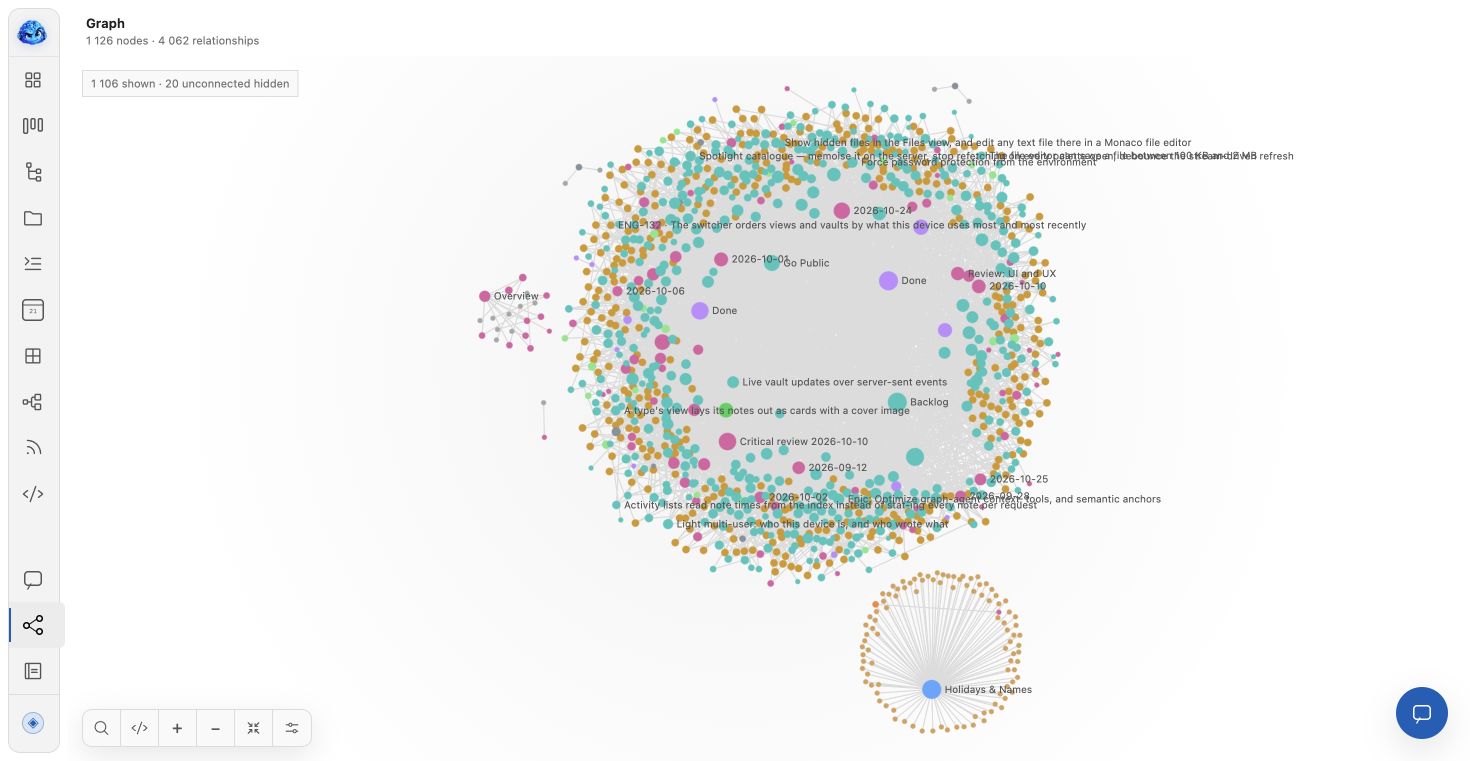
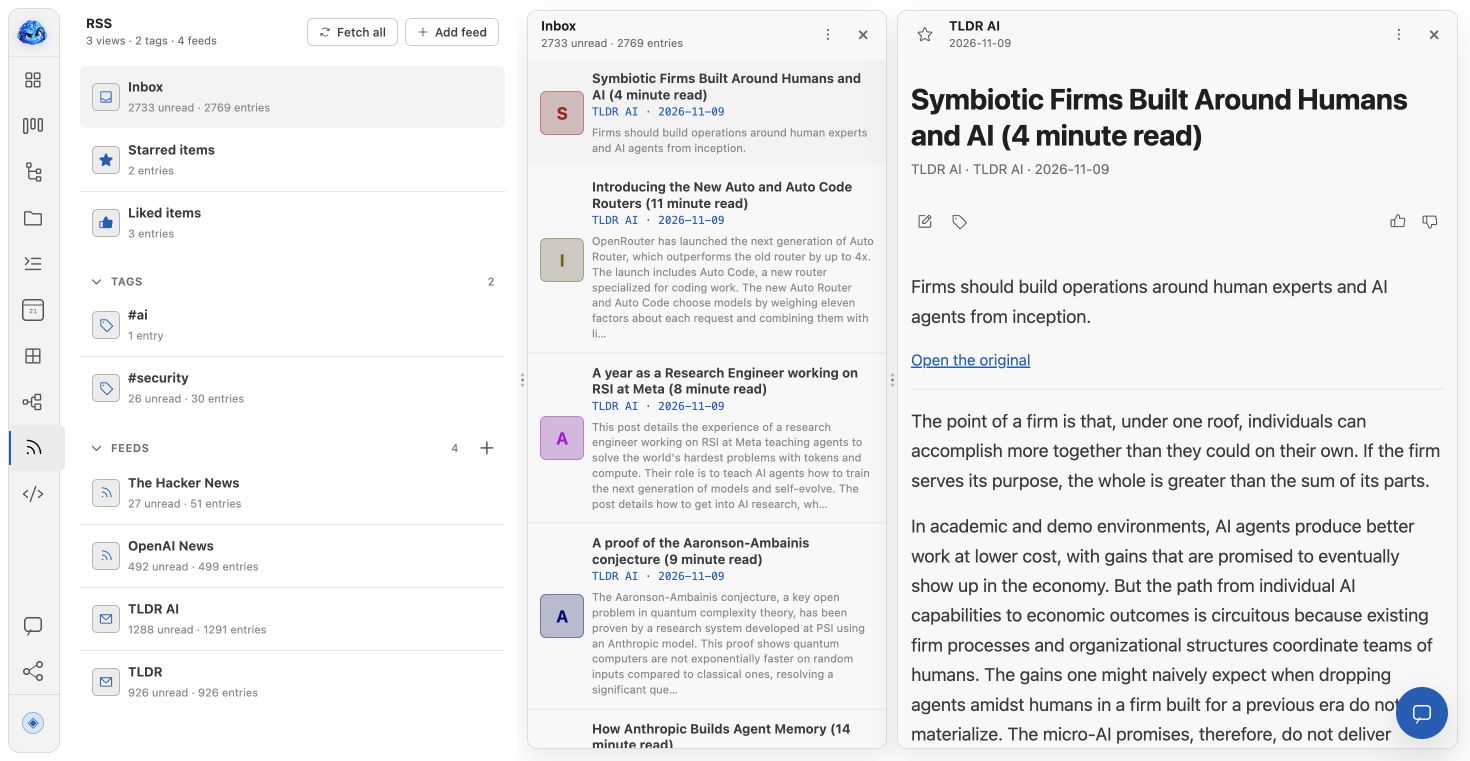
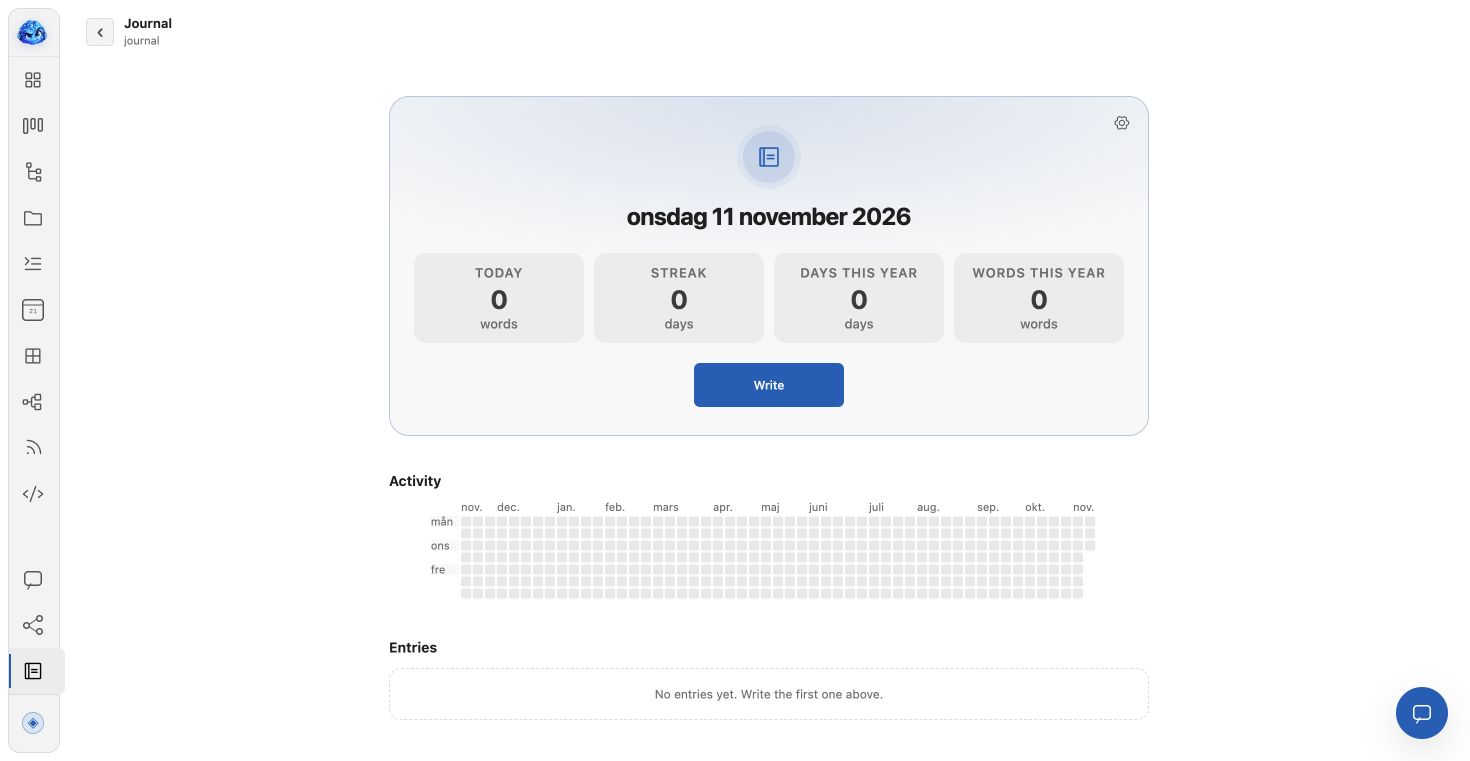
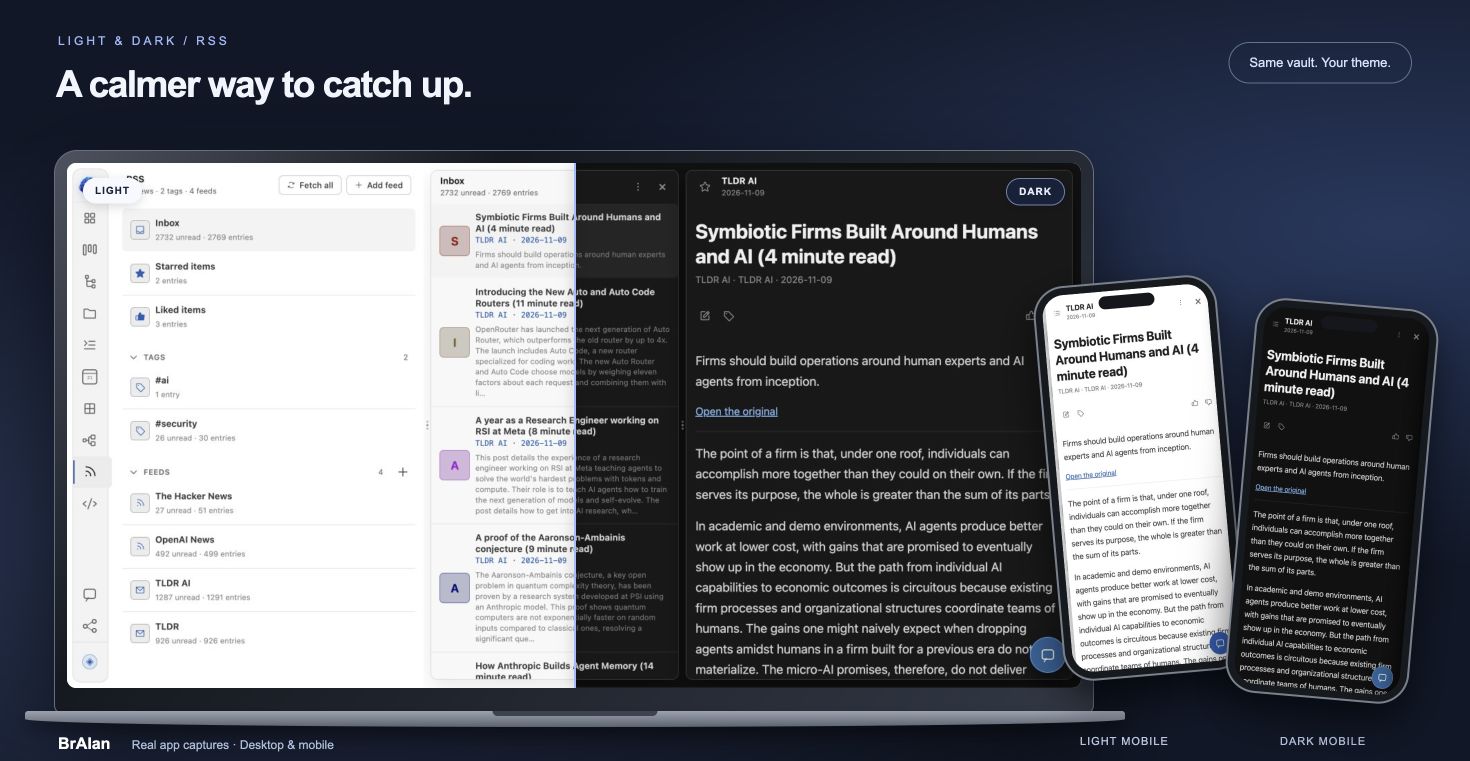
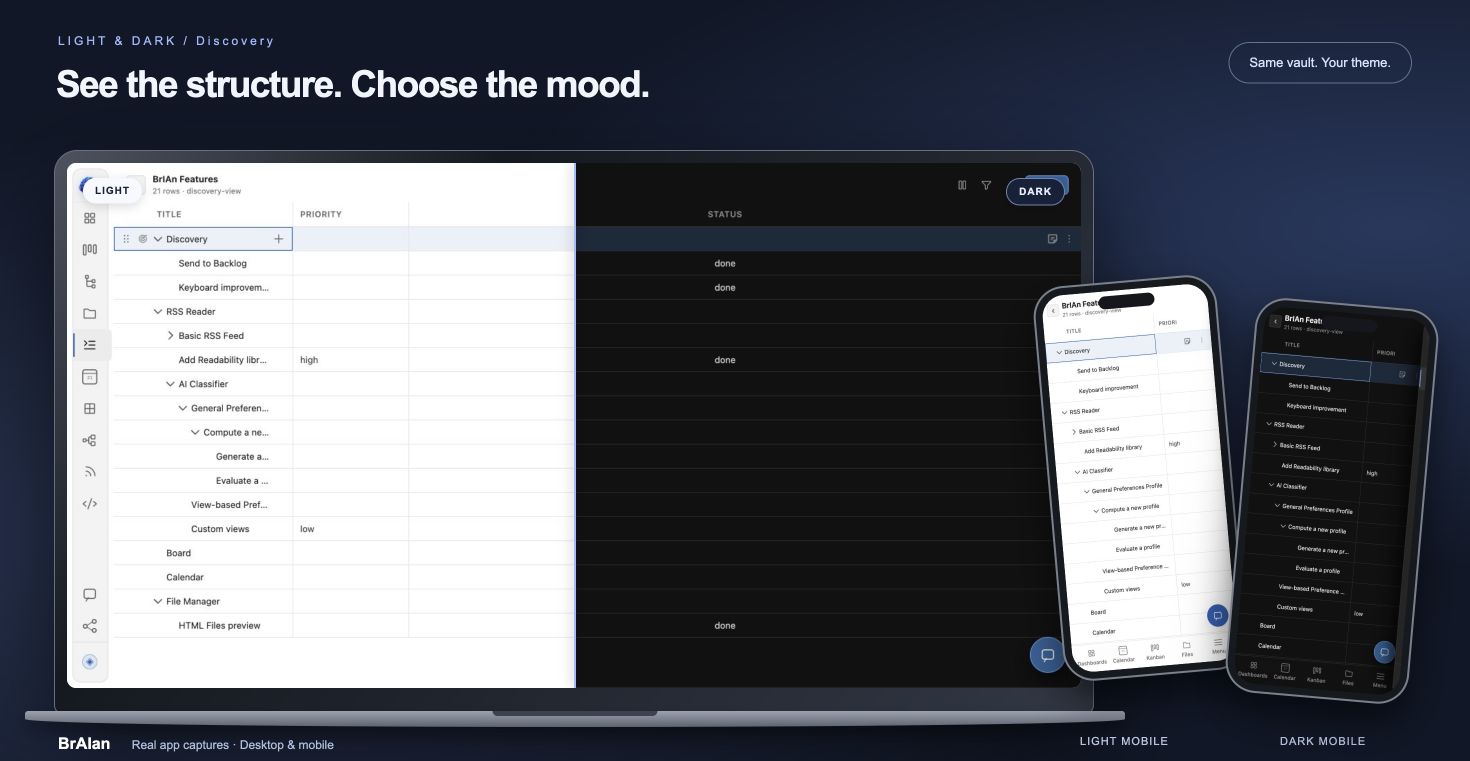
Follow RSS and supported newsletters, keep a journal, or build a dashboard. Discovery combines nested notes with typed columns, sorting and filters; the graph reveals their relationships.

Start with Files. Explore the other views at your pace.

Try your first vault ↗

A closer look · 15 seconds

From the big picture
to the detail.

Files, plans, reading, connections and conversation. See the workspace in motion.

A silent tour made from real app captures. Use the video controls to pause or replay.

05 / A shortcut to reading and writing

Ask a question.
Catch a thought.

Use AI when it helps. Ask about the vault, find context, or turn rough input into organised notes. The assistant works with the knowledge you have already built.

Choose the connection
for the job.

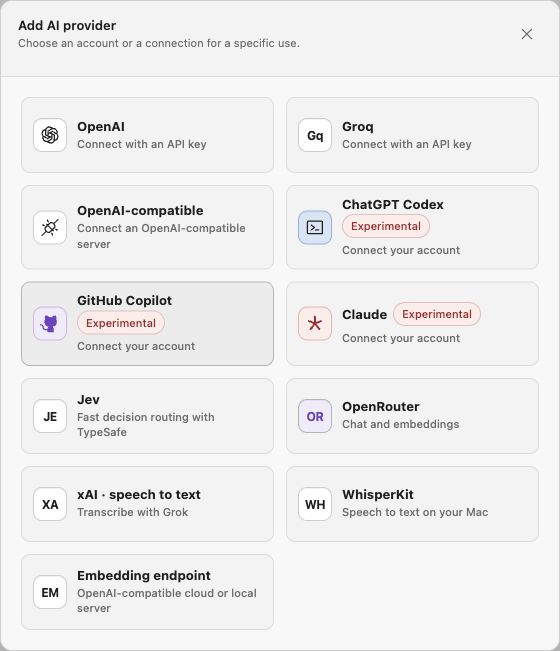
Add multiple providers and choose where each is used. OpenAI and OpenRouter API keys, Groq and OpenAI-compatible endpoints sit alongside experimental ChatGPT Codex, Claude and GitHub Copilot subscription connectors.

Chat, speech-to-text, embeddings and decision routing share one connection catalog. Choose the model and the enabled uses. Connect a cloud or local embedding endpoint; xAI is another speech-to-text option. New integrations can be added over time.

Subscription connectors are experimental; availability and permitted use depend on each vendor. Remote AI receives the context you send it.

Available AI providers including API keys, subscription connectors, WhisperKit and Jev
Real connection choices, shown before adding an account.

Speak while the thought is fresh.

Use WhisperKit for local voice recognition and dictation through a compatible Mac server, or Groq for fast online speech-to-text. Dictate into notes or chat with the provider you choose.

Small decisions, quickly.

Jev provides fast decision routing through TypeSafe. Keep that role separate from your main chat model, and configure each connection for the capabilities it supports.

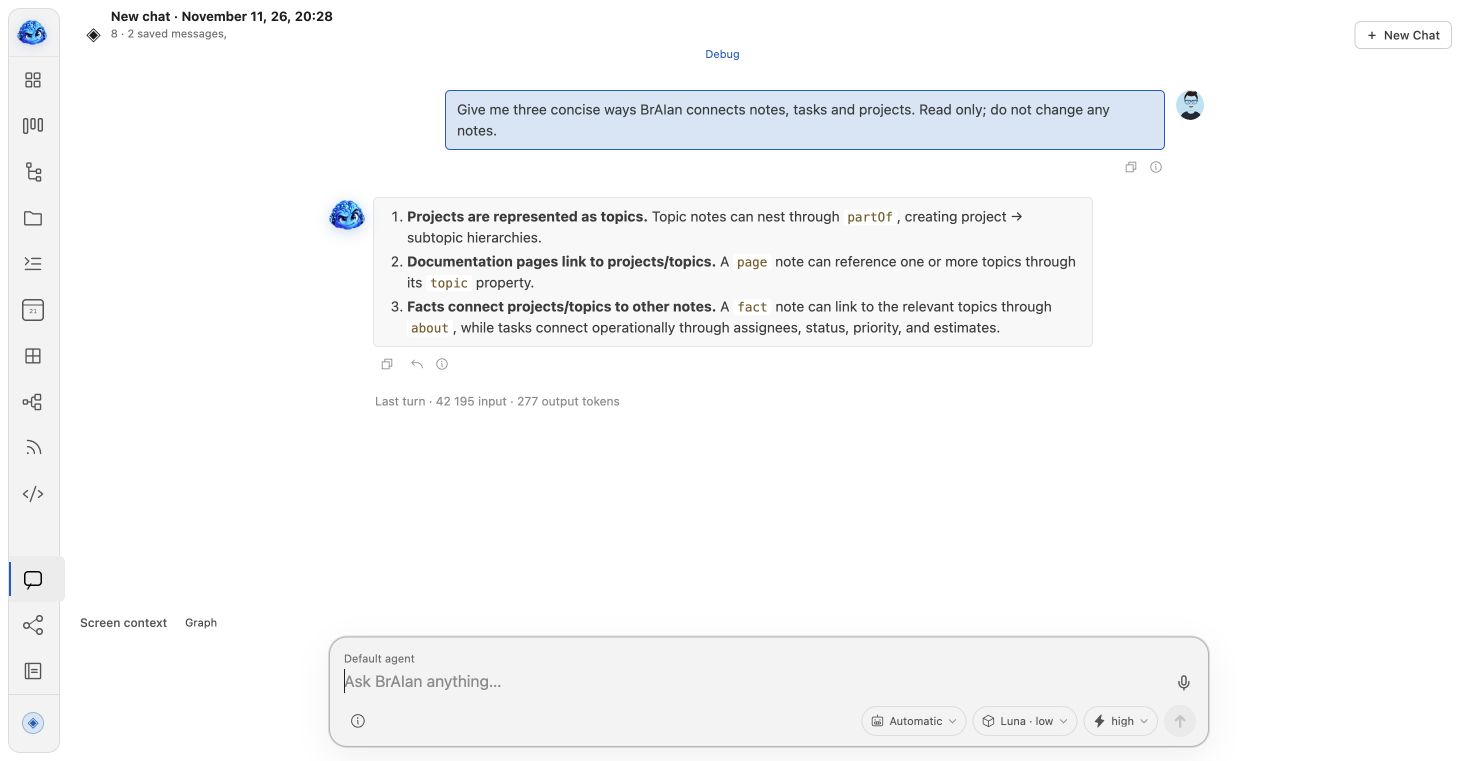
A real BrAIan assistant response explaining connections between notes, tasks and projects
A short, read-only question answered from the project’s own vault.

06 / Give someone the useful piece

A note for a friend.
A Space for the family.

Share one note, a folder, a board, an entire Space or a branch of its tree. Keep a family collection with your partner, or send just the context someone needs.

Write together.
Keep the boundary clear.

Give read or write access. Shared Markdown supports near-real-time collaborative typing, presence and multiple cursors—a familiar shared-document experience.

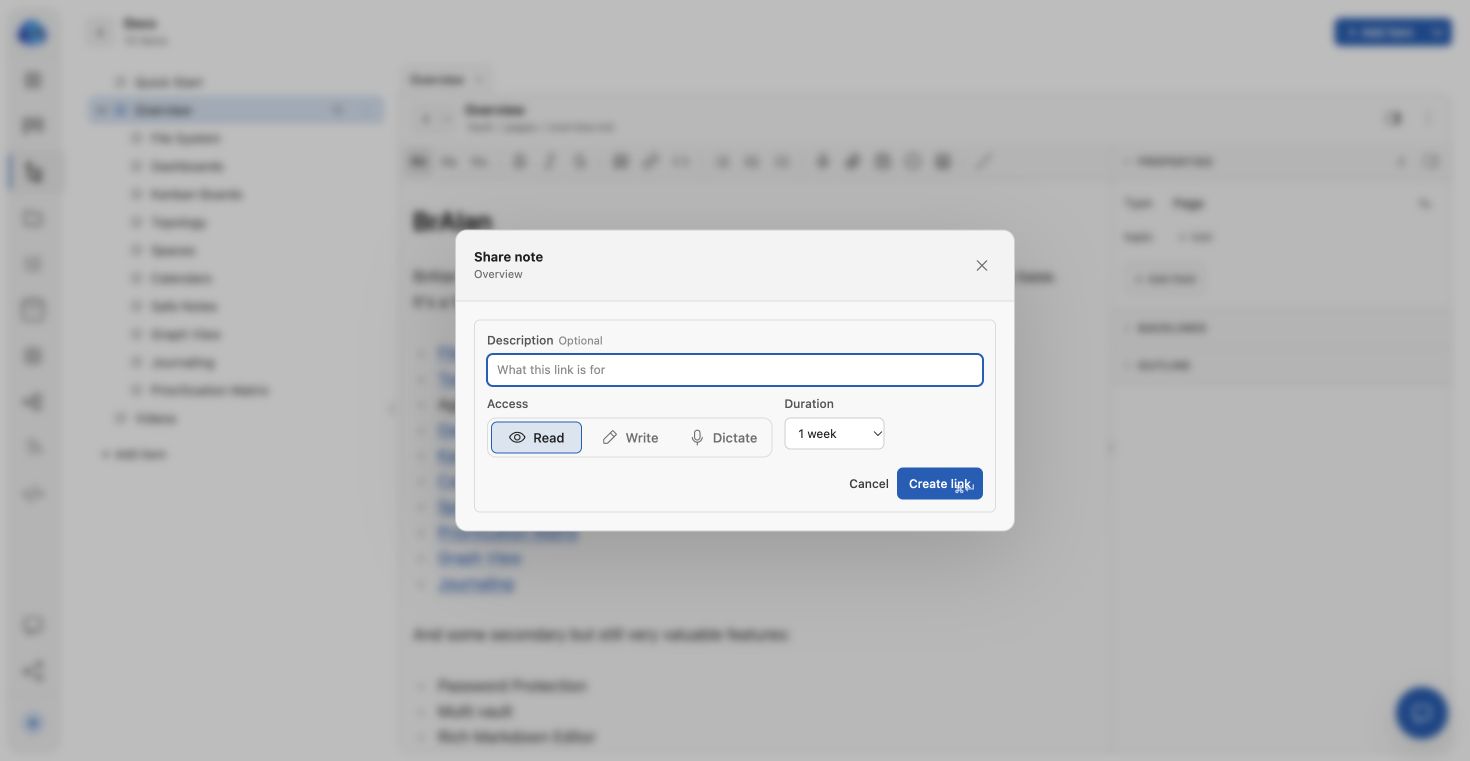
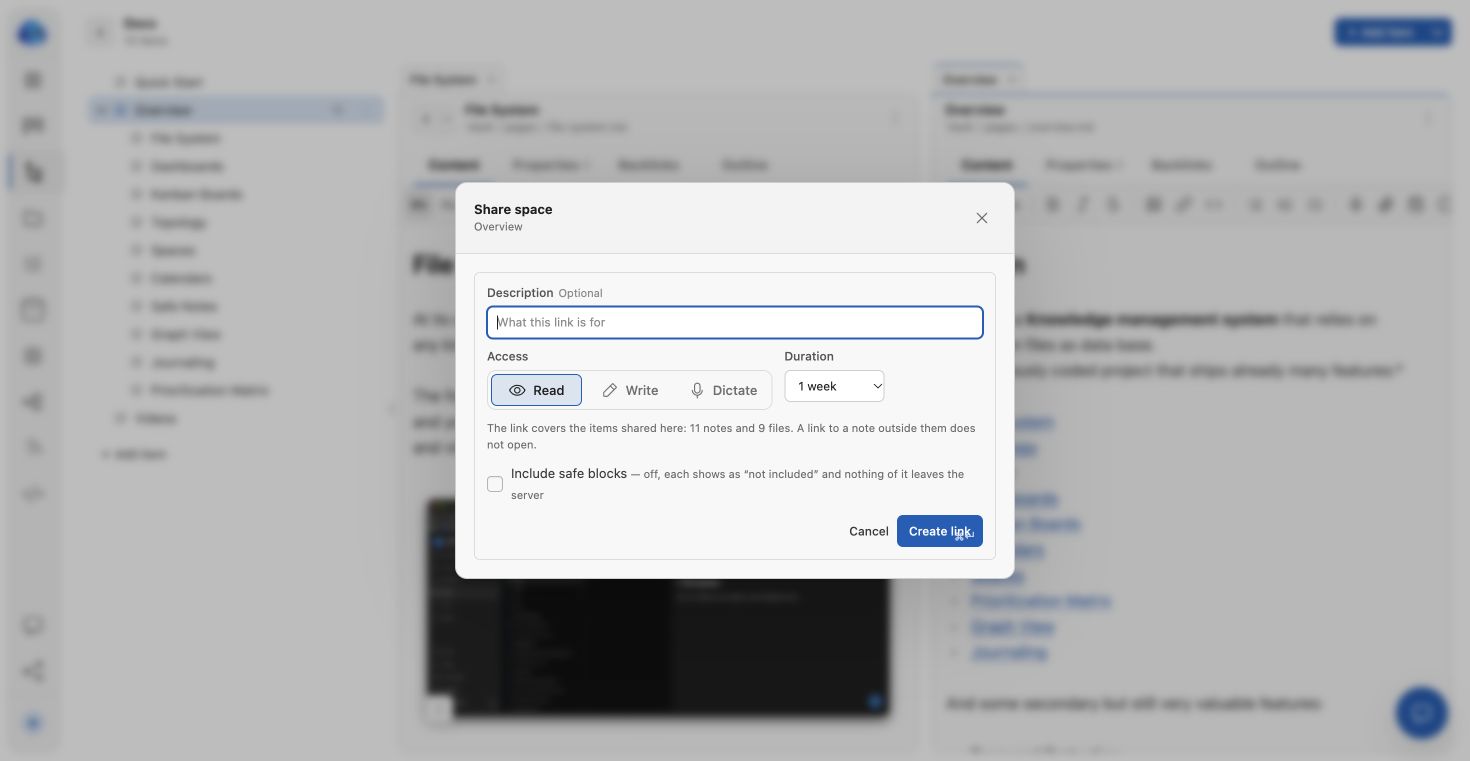
Create an expiring link or one with no end date. Revoke it when you need to. A Space or subtree link limits which items the recipient can open; your server must stay reachable.

Encrypted blocks are shared only when you choose to include them. This is a personal workspace with lightweight sharing.

Sharing a branch of a Space with access and duration settings before creating a link
Choose the scope, permission and duration before creating the link.

07 / Keep the workspace yours

Use the parts
that work for you.

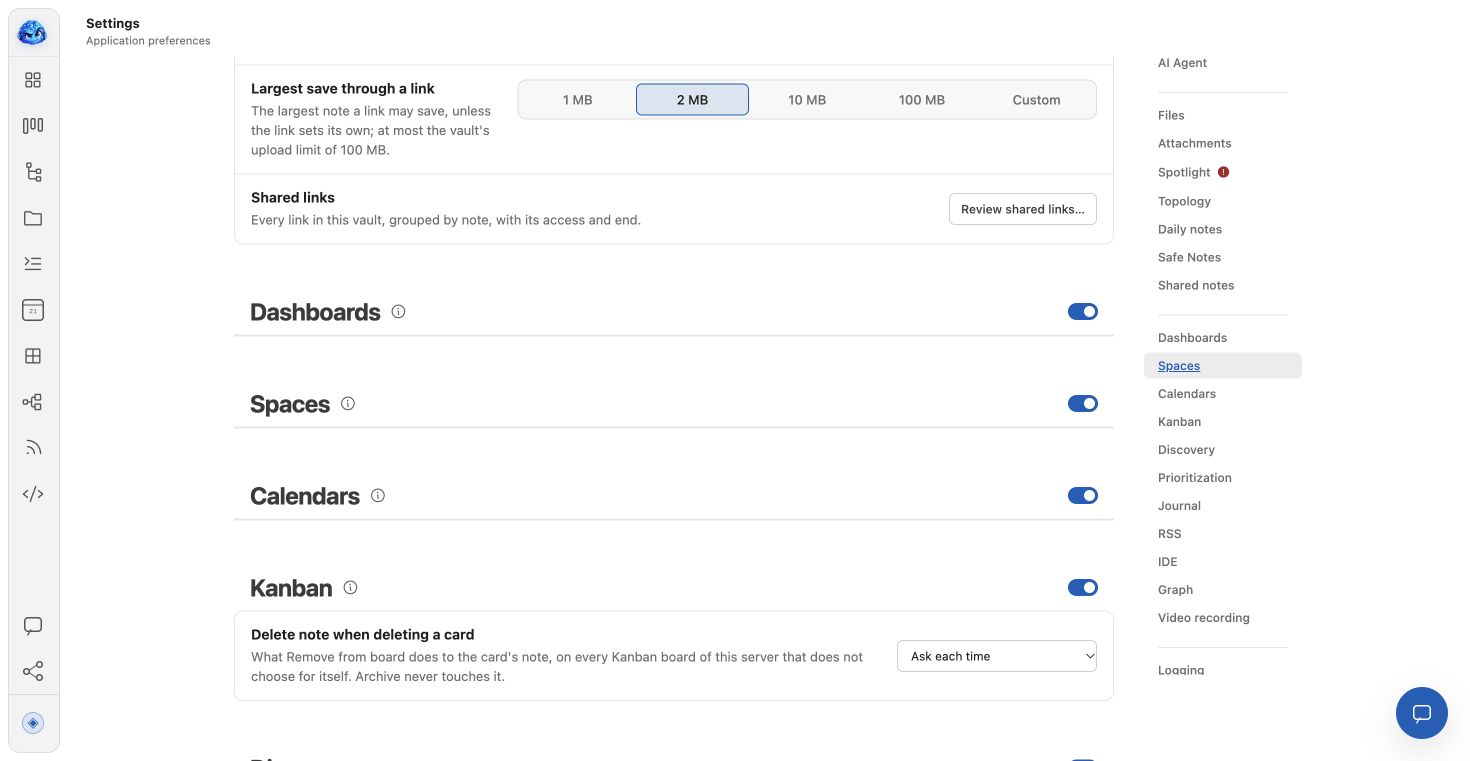
The larger workspace is there when you want it. Every optional feature has its own switch. Keep one vault simple and give another its full set of tools.

Different vaults.
Different ways of working.

Separate work, personal notes and side projects into independent vault folders. Enable or disable features vault by vault, then configure their behaviour in Settings.

Write on desktop, reach the context on your phone, and choose light, dark or your device’s theme. You decide how much of BrAIan belongs in each part of your life.

Settings with individual switches for Dashboards, Spaces, Calendars and Kanban
Features are optional and configured for the current vault.

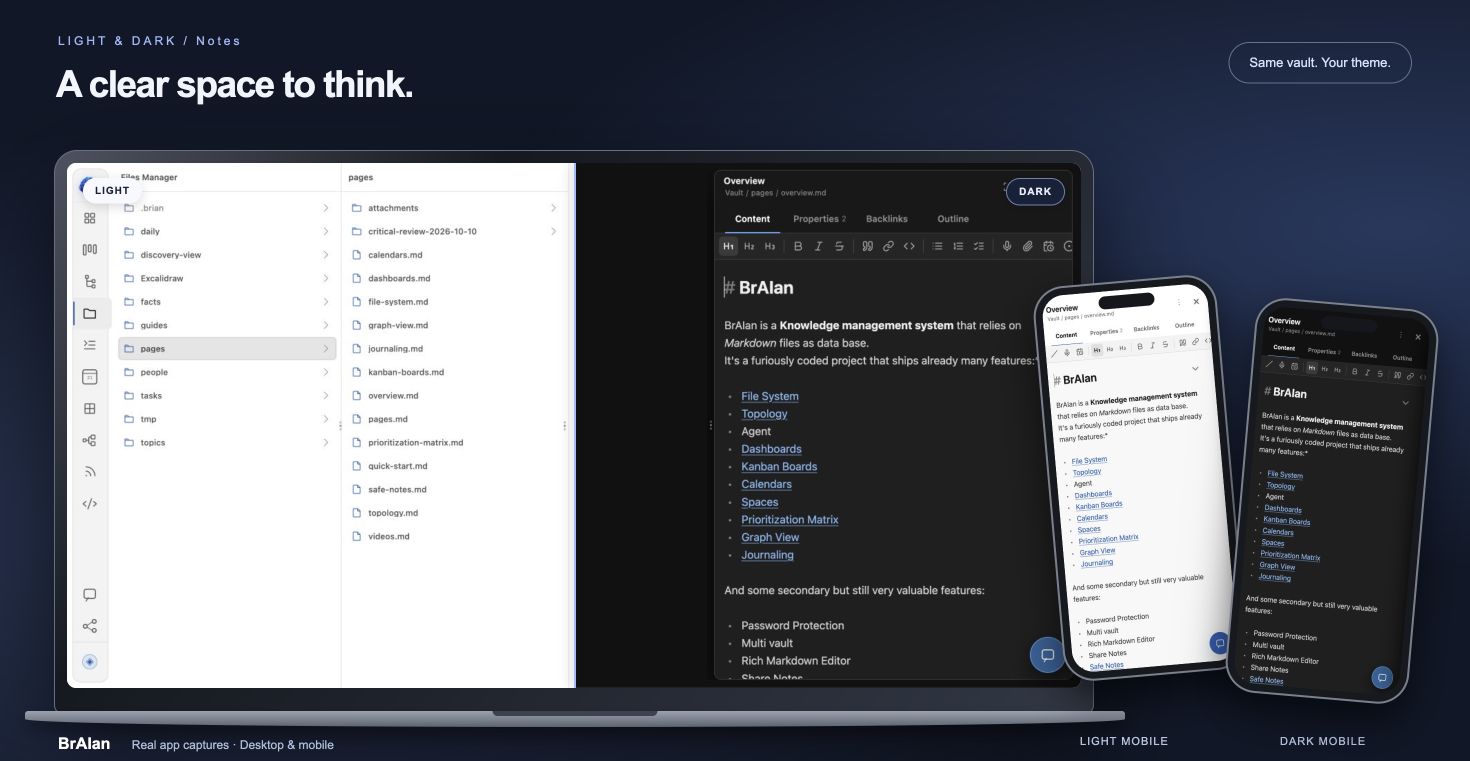
Two themes. The same workspace.

Find your
kind of light.

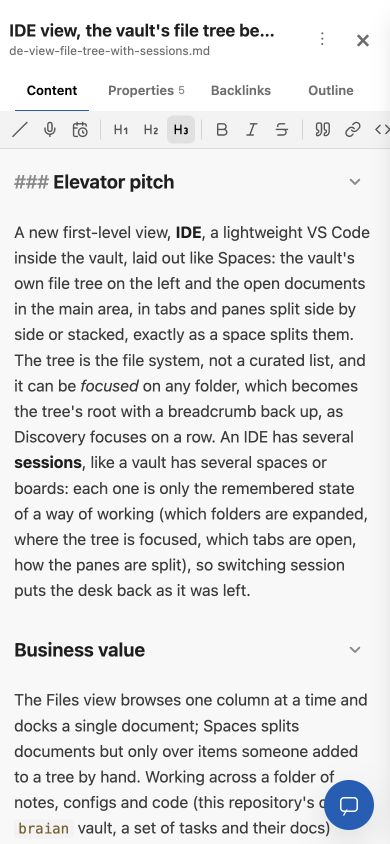
Bright mornings or late-night thinking. Every view follows your theme, on desktop, Android and iPhone.

The BrAIan vault’s IDE feature note in the mobile reader
The context comes with you.

Make room for real life

Your home screen.
Your workspace.

Install BrAIan on Android or iOS for a native-feeling experience: your own home-screen icon and a dedicated app window. Open a note, check a task or capture a thought with a tap.

iPhone & iPad

Open your running BrAIan instance in Safari. Choose Share → Add to Home Screen, leave Open as Web App enabled when shown, and tap Add.

Apple’s install guide ↗

Android

Open your instance in Chrome. In the browser menu, choose Add to home screen → Install when offered. Menu wording can vary by device.

Chrome’s install guide ↗

Install the running BrAIan app, rather than this landing page. Your phone needs access to that server: use an HTTPS address and set a password before exposing it. Home-screen installation does not make the server available offline.

Run BrAIan on your computer ↗

08 / Still your files, all the way down

Build on what
you already own.

The workspace can grow. Your vault stays a folder you can inspect, back up and keep.

An Obsidian drop-in for core notes.

Point BrAIan at your existing Obsidian vault. Keep Markdown, filenames, folders and wiki links. Use both apps on the same folder at the same time; BrAIan picks up disk changes.

Simultaneous edits to one note use the last saved version. Obsidian plugins, themes and workspaces are not executed.

Local, or self-hosted.

Run on your computer, your VPS or a cloud server you control. The Docker setup serves app and API together with mounted vault and app-data folders. The public Docker image is coming soon.

Storage stays on that host. Optional remote AI, transcription, feeds and sharing use the network. Use HTTPS and a password for a remotely reachable instance.

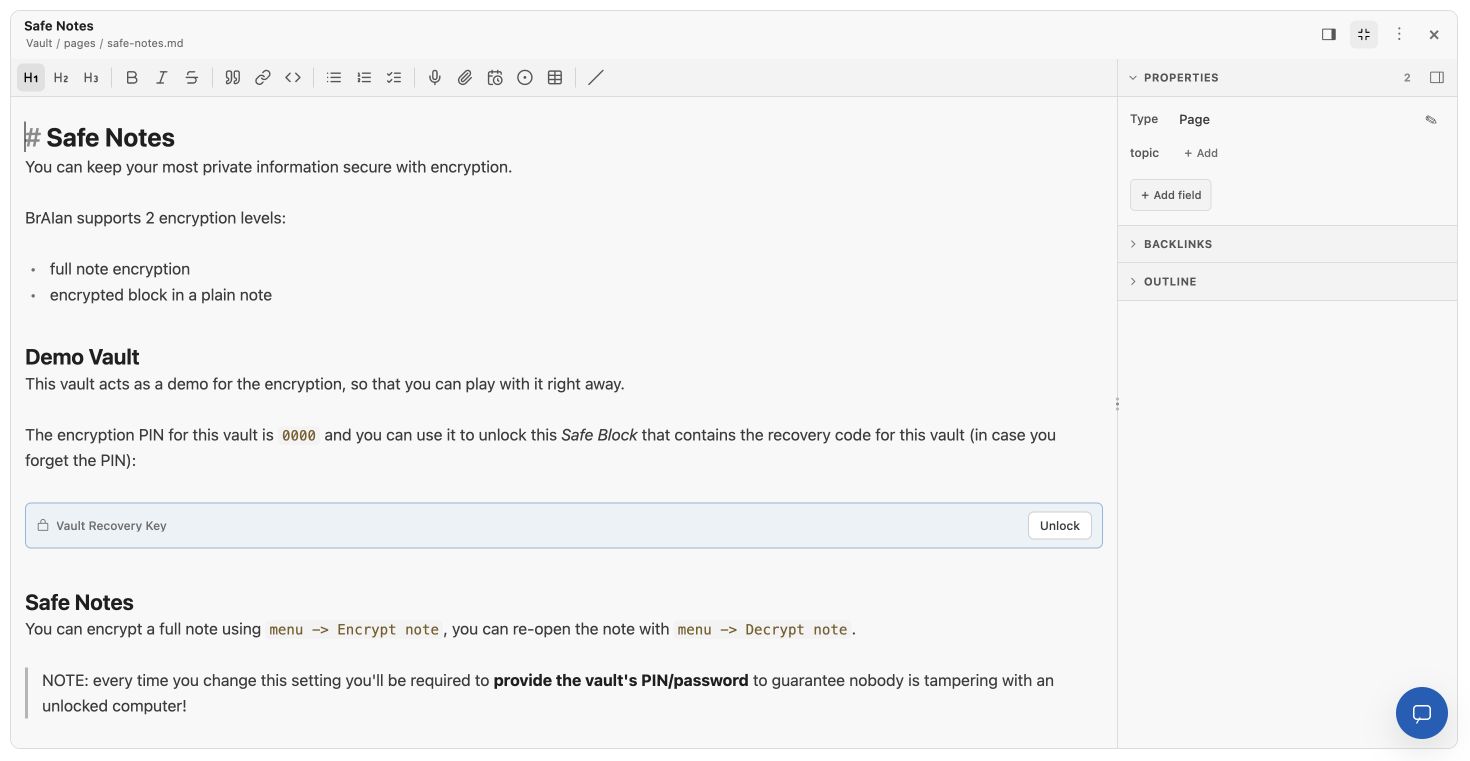
Lock the note. Or just one detail.

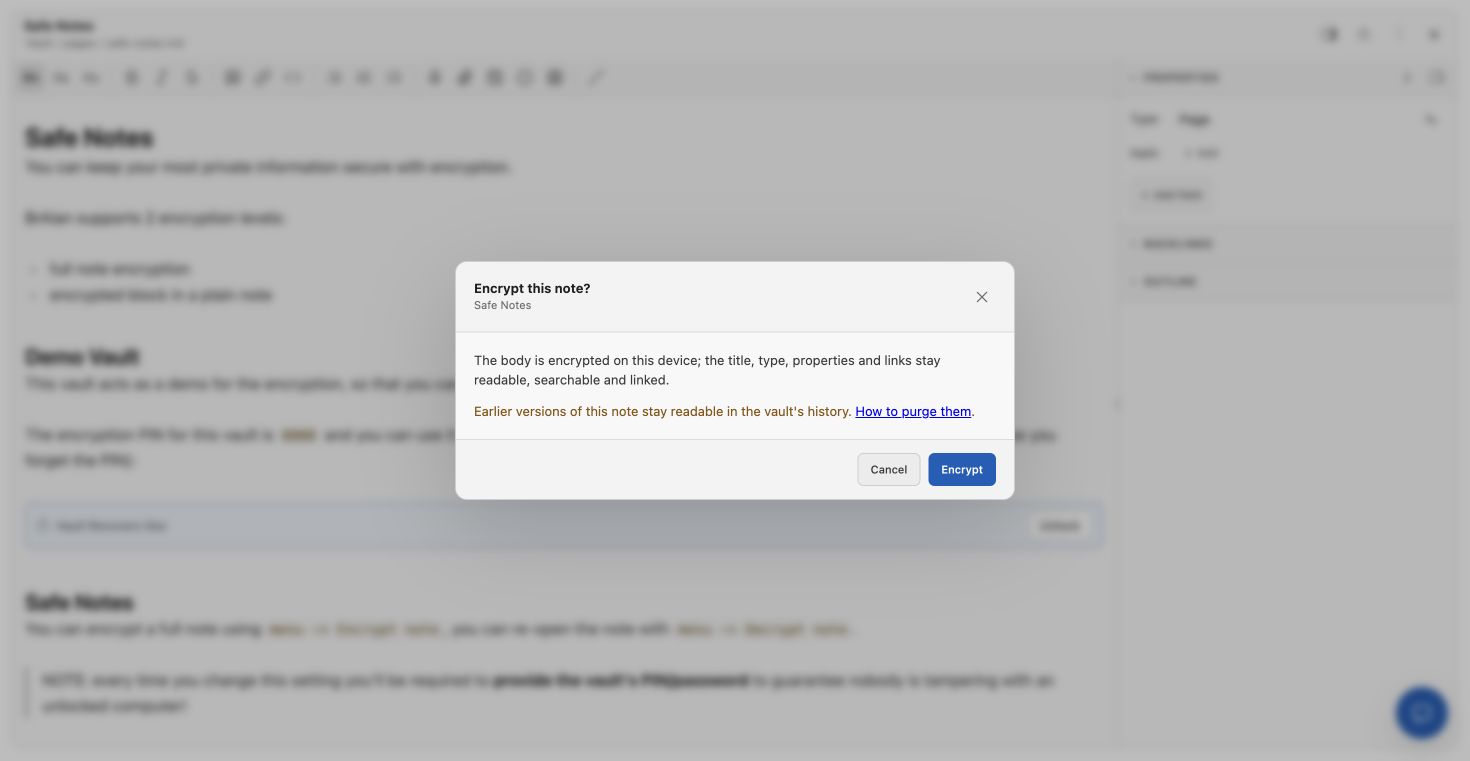
Encrypt whole note bodies or selected blocks, including password and OTP blocks. Safe text stays encrypted on disk and out of search and AI reads. Titles, properties and attachments remain separate.

Locked safe blocks embedded inside a Markdown note
Encrypted blocks inside an ordinary note.

09 / Your next step

Try the first note.
See where it takes you.

Choose your computer or your own GitHub Codespace. Start with a small vault and a note worth keeping.

ON YOUR COMPUTER

Try it locally.

Install Node.js 22.16 or later, then run npx braian. Your app and files stay on this machine.

npx braian
IN YOUR BROWSER

Try in Codespaces.

Open a prepared GitHub Codespace. BrAIan starts with a small vault and a private app preview.

Open Codespaces ↗

GitHub sign-in and available Codespaces quota required. Your plan may charge for use. Trial files live in your Codespace.

Trial details and troubleshooting ↗

Early software, actively developed. The application source will be added as soon as possible.

COMING SOON

Docker image

A published container image for your VPS or cloud host.

COMING SOON

Electron app

A packaged desktop app with the server built in.

More command-line options
● ● ●quick start

# Start BrAIan

$ npx braian

→ Opens localhost:8484
→ Create or open a vault
→ Connect AI in Settings when you’re ready


# Keep app data in your home folder

$ npx braian -g

# See every option

$ npx braian --help
Default app data: ./.brian · Stop with Ctrl+CRead the CLI documentation ↗

Keep exploring

The details,
when you want them.

Explore the full feature list

The full toolkit

Start small.
Grow into it.

Enable the features your vault needs. Everything below is part of BrAIan’s current toolkit; public Docker and Electron releases are still on the way.

01 Capture & write

Rich Markdown notes

Write with live preview, slash commands, tables, checklists, links, folding and an outline. Open source mode when you need the Markdown.

Daily notes

Capture quick thoughts into dated notes and return to the day’s context from the calendar or Spotlight.

Journals

Keep dated writing in dedicated journals, browse activity and use optional AI reflection prompts.

Dictation & audio

Speak into notes or chat with a configured transcription provider. Record audio and keep it with the note.

Attachments

Drop or paste images and files into notes. Preview supported media and keep references with the content.

Video recording

Capture screen, camera and microphone sources into a recording folder with a note. Available sources depend on the browser and device.

Drawings & diagrams

Use Excalidraw notes for visual thinking, Mermaid for diagrams, and QR blocks for addresses worth sharing.

02 Organise & plan

Kanban

Arrange notes in columns, add card properties and open the full note beside the board.

Calendars

Put notes on a calendar through rules, connect external iCal feeds and link events to useful context.

Prioritization

Place notes on a configurable two-axis matrix to compare urgency, importance or your own criteria.

Spaces

Gather notes, folders, files and views into a tree. Work across tabs and split panes without moving the original files.

Dashboards

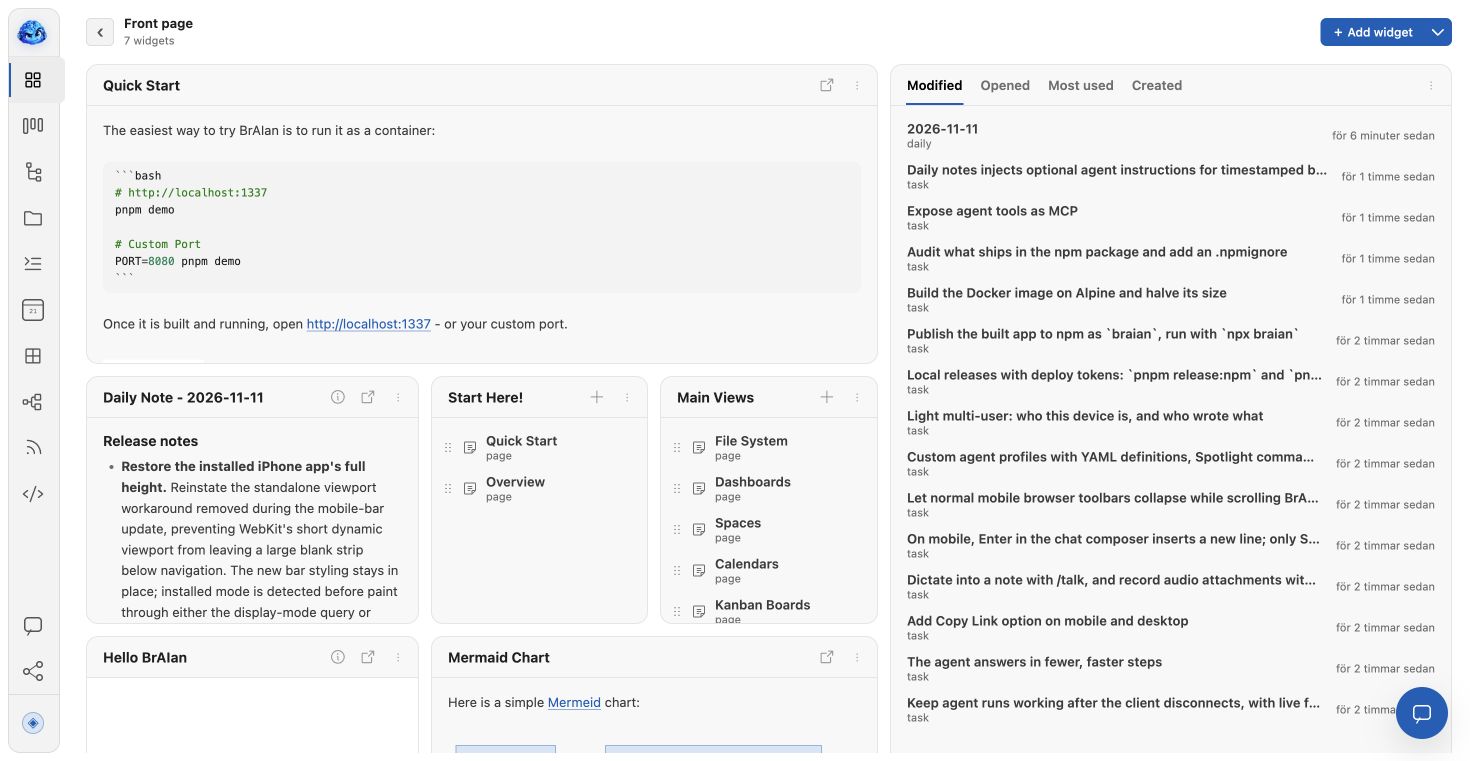
Build a front page from widgets such as recent notes, bookmarks, daily notes, clocks and embedded views.

Discovery

Combine nested rows with typed columns, filters and sorting. Optionally keep the note folders in step with the view.

IDE sessions

Focus a file explorer on a folder and work across split editor panes. Named sessions remember your working layout.

03 Connect & explore

AI assistant

Ask about your vault, structure rough input and update notes through typed tools. Choose providers, models, agent profiles and enabled tools.

Typed notes & views

Give people, tasks and projects their own properties, templates, table views and cards. Connect records with typed links.

Visual topology

Design the types and relationships your vault uses, with YAML definitions you can inspect on disk.

Graph explorer

Follow the connections between notes and inspect the relationships that bring your knowledge together.

RSS & newsletters

Follow feeds and supported email newsletter sources. Read articles, organise tags, star entries and keep reactions or notes.

Spotlight & keyboard navigation

Find notes and board cards, capture text, switch views and reach commands from the keyboard.

04 Share & keep

Sharing & live writing

Share notes, folders, boards and Spaces with revocable links. Choose read, write or dictation access and an expiry.

Safe Notes

Encrypt whole notes or selected blocks. Keep password and OTP blocks; encrypted text stays out of search and AI reads.

Git versioning

Keep vault history, inspect changes and recover earlier content with Git available on the server.

Files & code

Browse your vault’s folders, preview files, edit text and code, and move, rename, zip or download entries.

SQLite browser

Open a SQLite database, browse tables, run SQL and keep your query tabs with the vault.

Document exports

Export notes to PDF, Word or plain text, and download folders as ZIP files. Some exports need optional server tools.

Multiple vaults & passwords

Keep workspaces in separate folders, turn features on per vault and protect access to the running instance with a password.

Open the complete screenshot gallery

A closer look

Different views.
The same knowledge.

Real screenshots from the project’s own vault. Open any image for a closer look.

The narrative and page guide ↗

A few useful details

Is BrAIan a drop-in replacement for Obsidian?

For core Markdown-vault workflows, point BrAIan at the same folder without importing or converting your notes. You can keep both apps open on that vault. Edits from another app appear through filesystem updates; if both save the same note concurrently, the last write wins. Obsidian plugins, themes and workspaces are not executed by BrAIan.

Does anything leave my computer or server?

Your vault and application data are stored on the machine you run BrAIan on. BrAIan does not require a hosted storage account. Optional remote AI and transcription providers, RSS/newsletter connections and shared links communicate over the network. A browser on another device also retrieves content from your server.

Can I manage several vaults?

Yes. Register separate folders as independent vaults and switch between them. Each vault keeps its own notes, topology, views and feature settings.

Can I install it on Android or iOS?

Yes. Open your running BrAIan app on your phone and add it to your home screen for a native-feeling web app. The phone still needs to reach your BrAIan server. See the mobile installation steps.

Are Docker and Electron available?

Public Docker images and packaged Electron desktop releases are coming soon. You can run the published app today with npx braian.

Can I run BrAIan today?

Yes. The app is published on npm as braian. Run npx braian with Node.js 22.16 or later. Keep the terminal open while you use it.

Is the source code available?

The public repository currently contains documentation and an MIT license. We will add the application source code as soon as possible.

Do I need an AI account?

You can work with notes and views without connecting a model. The AI assistant needs a provider configured in Settings → AI providers. Your provider’s usage terms and charges apply.

Where does my data live?

By default, application data lives in .brian in the current folder. Use -g for ~/.brian or --data <directory> to choose a location. Your vaults hold the notes themselves. Do not run two app instances against the same application data folder.

Try it on your computer

Your first note
is one command away.

Install Node.js 22.16 or later (Node 24 works too), then open Terminal on macOS or Linux, or PowerShell on Windows.

npx braian

  1. Paste the command and press Enter. Accept npm’s install prompt if it appears.
  2. BrAIan opens in your browser at localhost:8484. Create or open a vault and start writing.

Keep the terminal running while you use BrAIan. Press Ctrl+C there to stop it.

More startup options ↗